
Looker and Data Studio: an integration that enhances Google’s BI

Today, companies must provide information to users in a way they can understand. They must generate reports with reliable data that visually represent their commercial efforts. 

Data-driven companies want to democratize access to relevant data in their organizations and empower their employees to get answers quickly. On one hand, companies want to create a single shared source of truth, with granular control of data access and secure centralized storage. While we realize that these capabilities are necessary to take our business to the next level, we must also think about whether these tools are reliable and have the necessary degree of security.

Companies today are looking for BI solutions that can be easily used by all members of an organization (both technical and non-technical) while producing real-time metrics.

Google understands this need, and that is why last April it announced its intention to integrate its Looker and Data Studio tools to offer companies a unified experience for self-service, well-governed BI.

Thanks to this integration, users will now be able to access and import governed data from Looker within the Data Studio interface, and create visualizations and dashboards for additional self-service analysis.

This union allows us to offer a better Google Cloud BI experience to our users. Business users will feel more empowered than ever, while data leaders will be able to preserve the trust and security their organization needs.

Looker and Data Studio: better together 

Looker and Data Studio are complementary tools. The union of Looker and Data Studio opens exciting opportunities to combine the strengths of both products and a wide range of BI and analytics capabilities to help clients reimagine the way they work with data. 

Looker is a modern enterprise platform for business intelligence and analytics, helping organizations create data-rich experiences tailored to every part of their business. Data Studio is an easy-to-use, self-service BI solution that enables ad hoc reporting, analysis, and data blending across more than 500 data sets. 

How will the integration work?

According to Google Cloud, this first integration between these products will allow users to connect to Looker’s semantic model directly from Data Studio. 

Users can bring the data they want to analyze, connect it to other available data sources, and easily explore and create visualizations within Data Studio. The integration will follow three principles with respect to governance:

  1. Access to the data will be carried out having the capabilities using Looker’s security measures.
  2. Looker will remain the single point of access to your data.
  3. Administrators will have full ability to manage Data Studio and Looker in an integrated manner.

How is Google integrating these products?

Looker’s semantic model allows metrics to be centrally defined and widely used, ensuring a single version of the truth across all your data. This integration allows Looker’s semantic model to be used within Data Studio reports, allowing people to use the same tool to create reports that are based on both ad-hoc and governed data. This brings together the best of both worlds: a governed data layer and a self-service solution that enables the analysis of governed and ungoverned data.

With this announcement, the following use cases will be supported:

  • Users can turn their Looker-driven data into informative and highly customizable dashboards and reports in Data Studio.
  • Users can combine Looker’s governed data with data available from more than 500 data sources in Data Studio, to rapidly generate new insights.
  • Users can quickly analyze and prototype raw data—from spreadsheets, CSV files, or other cloud sources—within Data Studio.
  • Users can collaborate in real-time to create dashboards with teammates or people outside the company. 

When will this integration be available for use?

This integration is the first of many in Google’s effort to bring Looker and Data Studio closer together. Future versions will introduce additional features to create a more seamless user experience for these two products. 

In short, Google will implement new capabilities in the coming months. So, don’t miss any Making Science articles as we will be publishing all the news on this topic.

Do you want to know more about the Looker + Data Studio integration and the benefits it can bring to your online business? Our team of experts will be happy to attend to your specific case. Get in touch today!
Get in touch

Integrating Google Analytics attribution reports in Google Data Studio

One of the main advantages of Google Data Studio as a reporting tool is its native integration with other Google tools. One of the most widely used integrations is the Google Analytics connector. Data Studio can collect data directly from the platform.

With this integration, we can see and edit reports similar to audiences, acquisition, behavior and conversions, for Universal Analytics or GA4.

We do not have the same luck, however, with the MCF (Multi-Channel Funnels) reports, since these are calculated differently, and are not available from the same API.

Here, we’ll discuss setting up a Multi-Channel Attribution Funnel. Read on to learn more.

Integrating Attribution Reports in Google Data Studio

MCF reports are located under the “Conversions” section of Universal Analytics. They include assisted conversion data, top conversion paths, or path length or time.

These reports can be used to answer questions like 

  • How many times did search campaigns help in conversions?
  • Which channel is most valuable when it is the last interaction?
  • How many days/touchpoints does it take for the average customer to convert?

Learn more about multi-channel funnels

Data for channel starters, helpers, and finishers

In the future, we may be able to create them automatically. Until then, to view attribution reports, you can use the following steps.

Note: This integration is exclusively for Universal Analytics properties.

Integration Steps

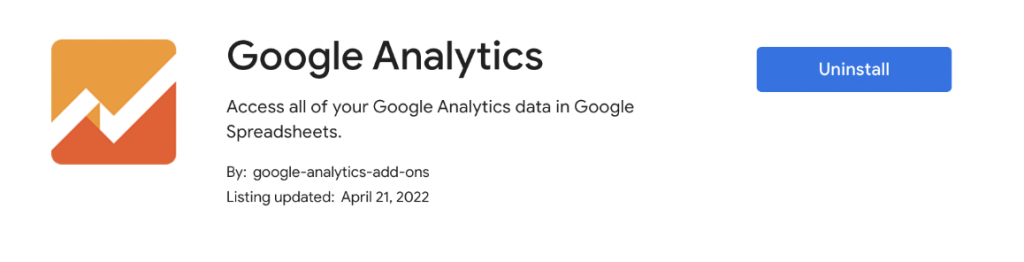
  1. Install the Google Analytics extension for Google Sheets

This Sheets plugin takes analytics reporting a step further. It offers the capabilities of the Google Analytics API combined with data manipulation in Google spreadsheets.

The API that we will call from here will be the one that will return the data you need. More advanced details of the extension.

  1. Connect a report through the extension via API

Once the plugin is installed, you will have to launch it from the Extensions menu: in the top bar -> Google Analytics -> Create new report.

Once you do, you’ll need to give the report a name, and select the account, property, and view to apply these settings to.

Leave the rest of the fields empty.

Now you will have a series of fields available, for each of the rows, in which you’ll be able to request information from Analytics.

Start by typing mcf for Report Type, to indicate the Multi-Channel Funnels API.

The minimum fields you will need are:

  • Report Name
  • View ID
  • Start Date
  • End Date
  • Limit
  • Report Type
  • Metrics
  • Dimensions

You should already have the first 5 ready.

  1. Choose the appropriate dimensions and metrics and add them to the report

In our custom report, we will need to indicate that the request is to the MCF Reporting API, using the appropriate dimensions and metrics.

To do this, we have to go beyond the ones available in the drop-down list (that’s why we didn’t fill them in before) and look for the ones we’re looking for within all dimensions and metrics available.

Note: These fields, in addition to not being in the drop-down list of the extension, are also not found in the UA dimensions and metrics explorer.

Copy and paste all the searched metrics and dimensions, separated with a comma and without spaces.

Some important dimensions you can use:

  • mcf:basicChannelGrouping: Basic channel grouping, automatic from Google Analytics.
  • mcf:timeLagInDaysHistogram: Length of conversion paths in number of days. In other words, the days needed to achieve each conversion.
  • mcf:pathLengthInInteractionsHistogram: Length of conversion paths in number of interactions. That is, the number of touchpoints needed on each channel to result in a conversion.
  • mcf:basicChannelGroupingPath: Sequence of most successful channels along conversion paths.

And some important metrics:

  • mcf:totalConversions: Total conversions. Including goal achievements and transactions.
  • mcf:totalConversionValue: Total value of conversions. This metric includes goal achievements and transactions.
  • mcf:firstInteractionConversions: Number of conversions in which the channel has appeared in the first interaction.
  • mcf:lastInteractionConversions: Number of conversions in which this channel has appeared in the last interaction of the conversion. This metric includes goal achievements and transactions.

Launch the report

We can run the reports from the Google Analytics extension menu -> run reports. If all is well, a new tab will be created with the name you have chosen.

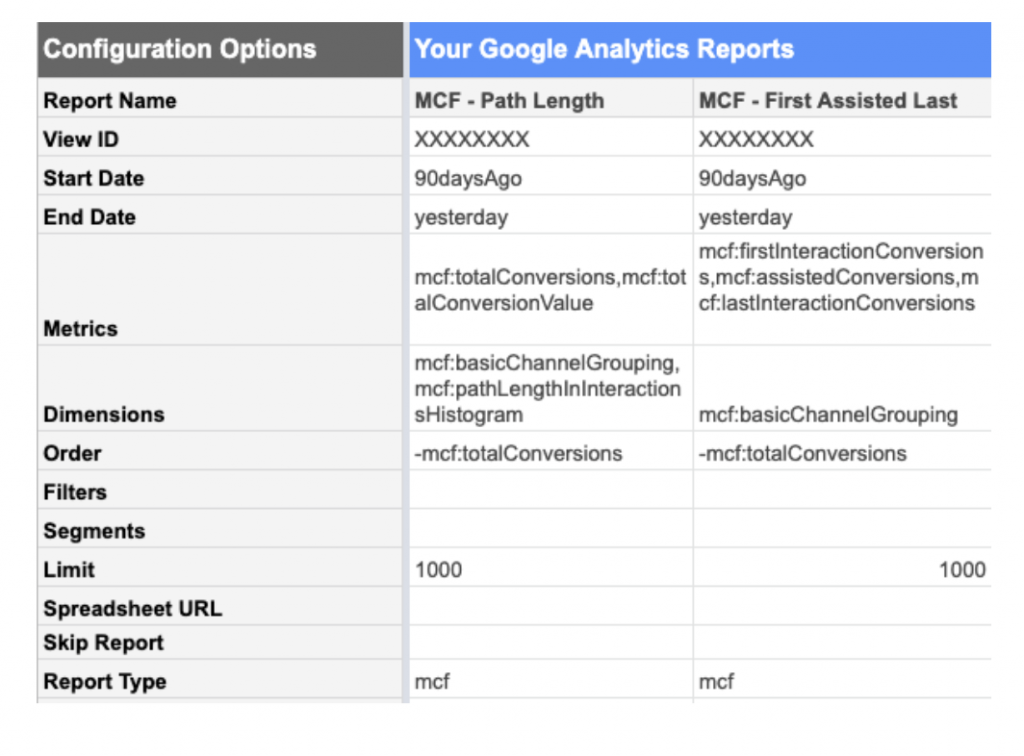
For example, with the following metrics and dimensions we will have the following reports:

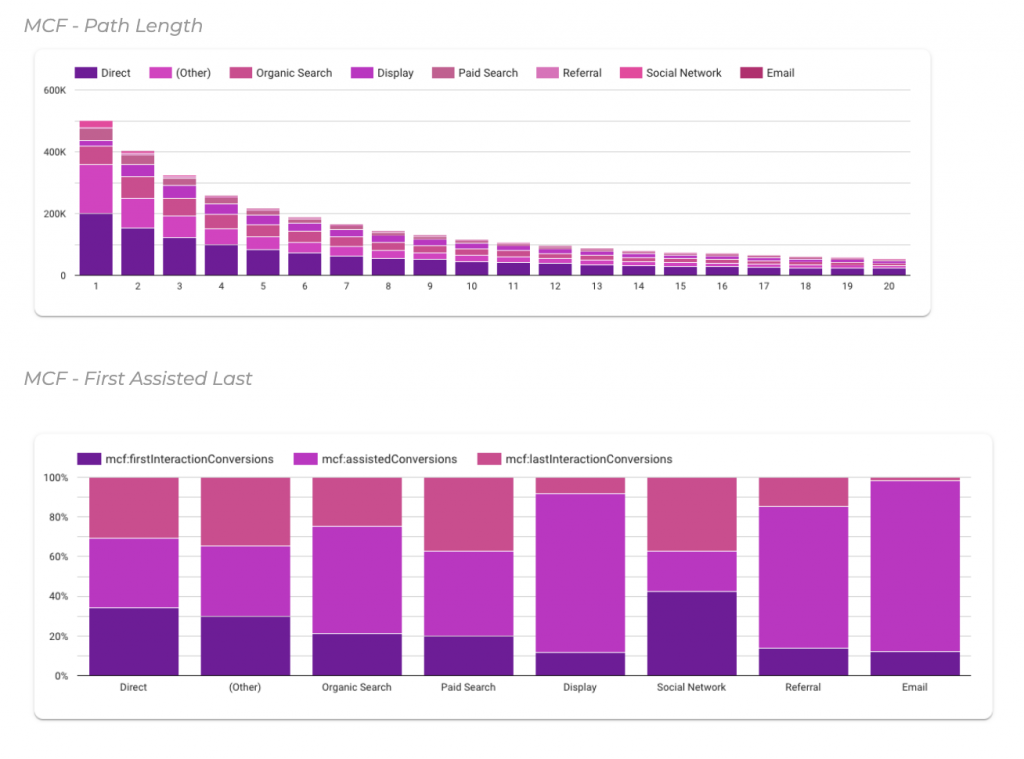
  • MCF – Path Length: Example report of the length of touchpoints per channel
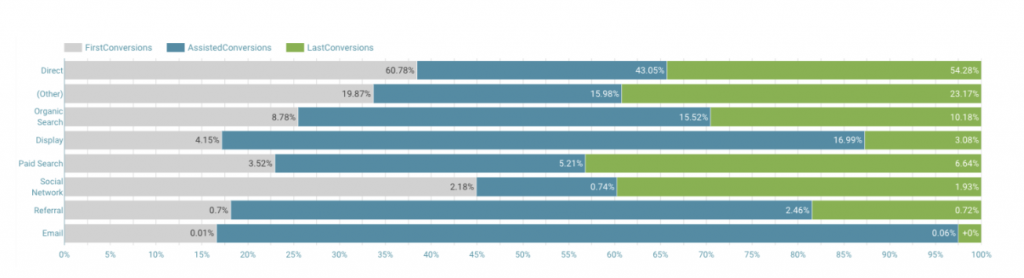
  • MCF – First Assisted Last: Example report of the conversions of each channel as initiator, assistant and finisher

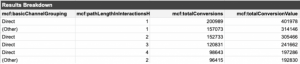
In the first example, we’d see information like this:

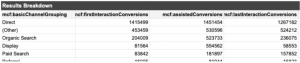
And in the second example, we’d see information like this:

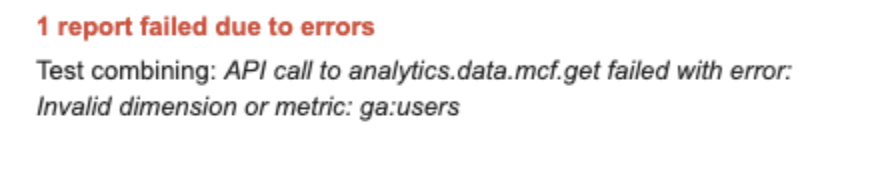
Note: MCF reports can only be run with mcf dimensions and metrics. If we combine these with standard metrics or dimensions, the report will give an error like the following:

Connect the reports with Data Studio

To connect the reports and view the information from Google Data Studio, it is as easy as creating a new report, or opening an existing one, and connecting a data source from Google Sheets.

First, find the report you have created. Then, connect each of the tabs (reports) that you have requested to the Google Analytics API.

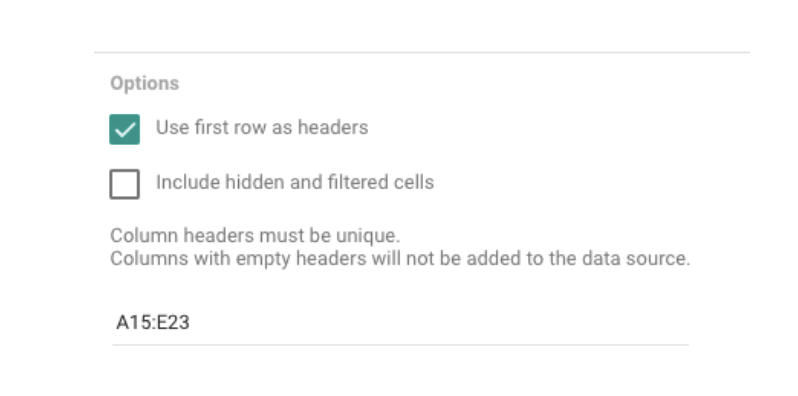
Note: the reports do not appear in the first row, so you must choose a specific range in the options to connect the document and view the information (example: A15:D1015).

Following the previous examples, these are the visualizations that we could create with the previous information:

Updating and scheduling reports

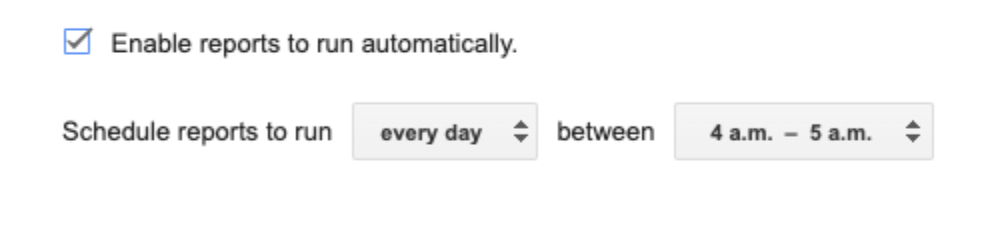
Whenever you want to run the report again, you can do it manually. But the extension also allows you to schedule reports to run automatically, so your data is always up to date.

To do this, just go to the Google Analytics extension menu -> Schedule reports. Here you’ll choose the interval of the execution.

Change existing reports

If we want to edit an existing report (for example, change from the last 30 to 90 days, or add a new metric), we must do it by editing the reports table directly.

Now you know how to connect attribution reports in Data Studio! Enjoy and take advantage of this functionality to get useful information from all your campaigns.

Bookmark these links to finish

Need help getting started?

If you need help implementing reports in Google Data Studio (or, let’s be honest, ANY type of data-based reporting) don’t hesitate to reach out to our team.

Get in touch